Prepare a smaller thumbnail
Choose a size limit, preview the result, and download your image.
Your image stays on this device
JPEG, PNG, or WebP · Up to 20 MB and 16 megapixels. Animated images export as a single frame.
Your image preview will appear here.
Try it: prepare a thumbnail below 100 KB
Use our original illustration to try a specific file-size target. This example changes the format and dimensions together; your own image may need different settings.
- Download the original PNG below and choose it in the compressor.
- Choose JPEG, set the output to 1280 × 720, and enter 100 in the maximum file size field. Here, 100 KB means 102,400 bytes.
- Prepare the image, check the measured size and preview, then download the result.
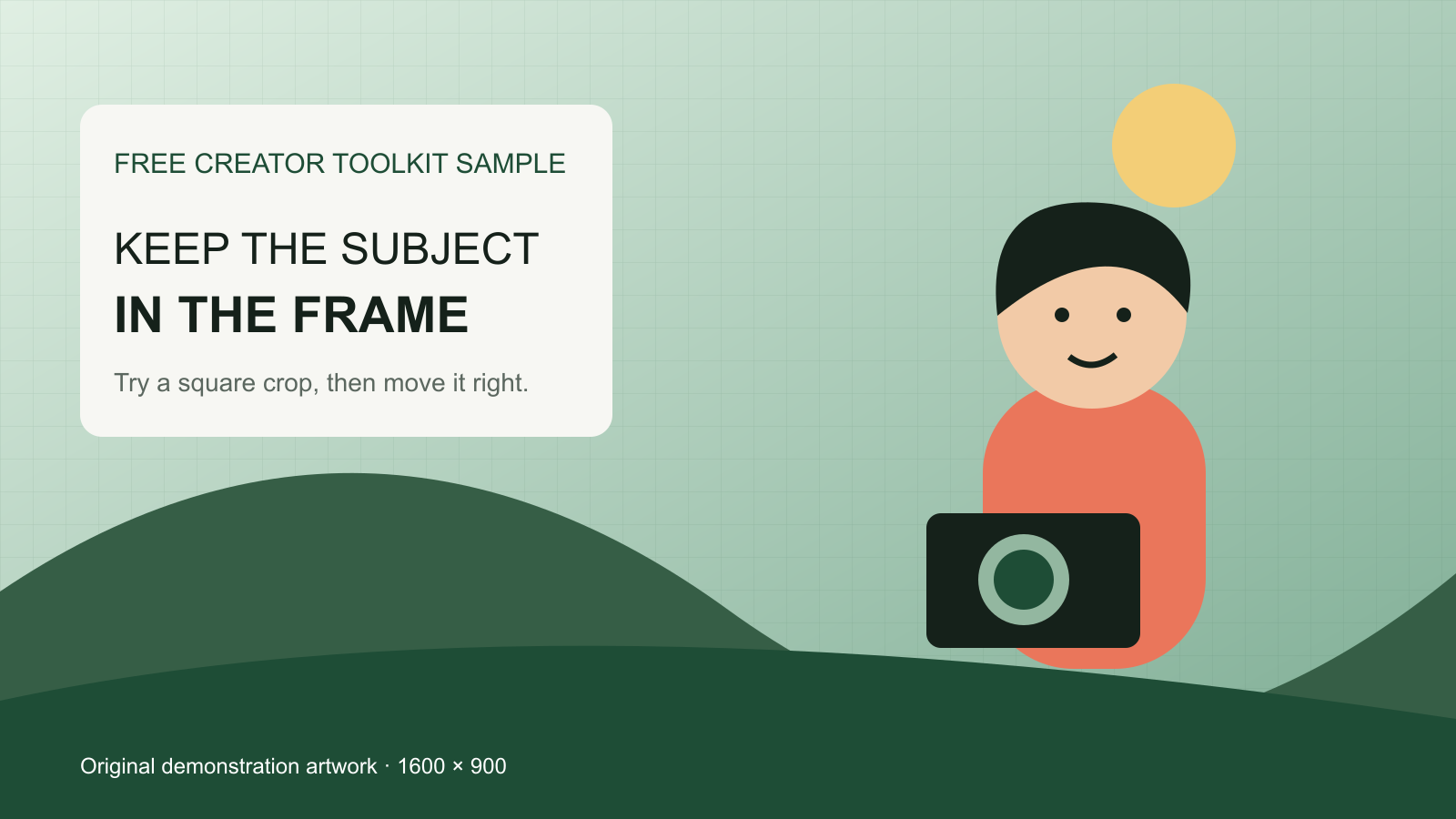
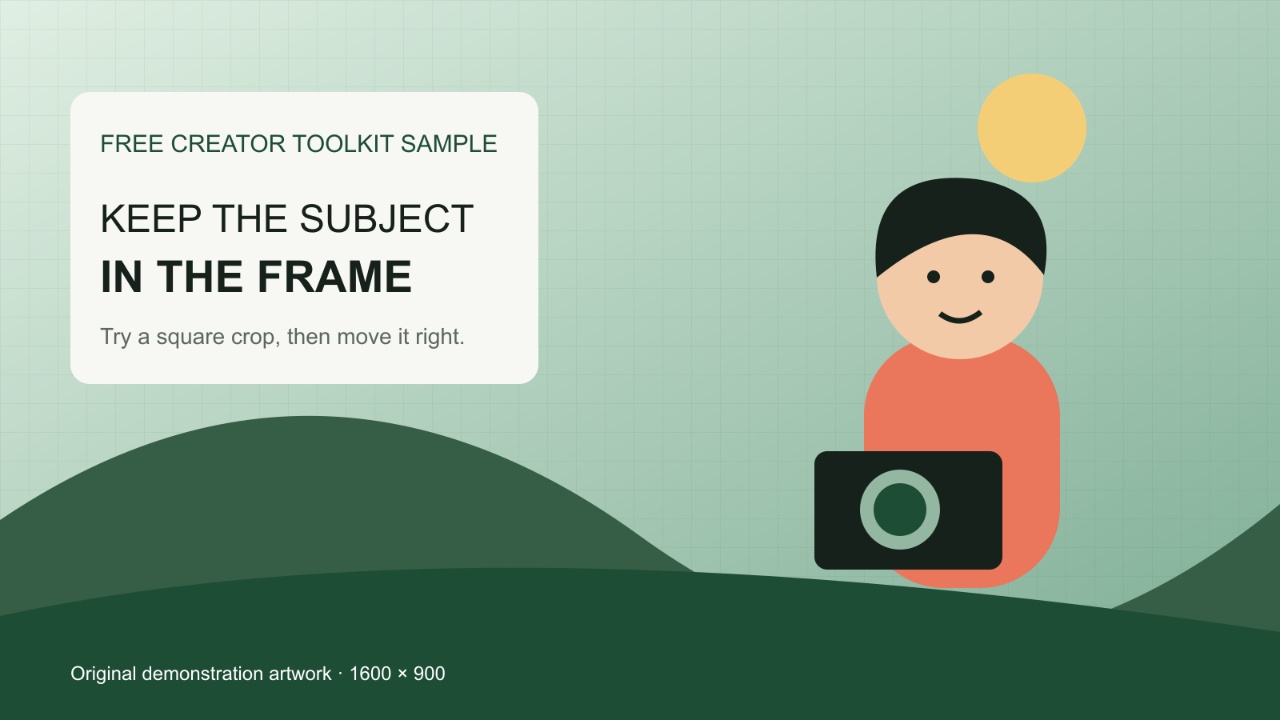
This output was generated using this tool’s image-processing functions. Browser encoders can produce different byte counts. Treat the displayed size of your own result as the deciding check, and inspect small lettering before publishing.
If your result looks different
The result still exceeds the target
Reduce width and height, or try JPEG or WebP if the destination accepts them. A fixed-size PNG may not get smaller enough because it has no adjustable lossy-quality control here.
Fine text looks rough
Allow a larger file if the destination permits it, use larger lettering in the source, or compare another output format. Repeatedly compressing an already compressed copy can make artifacts more visible.
A file can meet the upload limit while its title or subject is still hard to read.
Check the thumbnail at feed sizeHow to use the thumbnail compressor
Prepare an image for a file-size limit without sending the selected file to a server. Choose JPG, PNG or WebP output, set the dimensions and optional crop, then inspect the actual encoded result before downloading it. The tool reports the output size rather than assuming that a quality setting will fit every image.
Choose a size target and inspect the result
For a thumbnail that needs to stay below two million bytes, start with the conservative 1,950 KB preset. This tool uses 1 KB = 1,024 bytes and also displays the exact byte count, so you can compare it with the destination's limit. The current YouTube requirements differ by upload device; use the limit shown by your actual upload workflow.
JPEG and WebP quality can be reduced to meet a target, which may change fine text or detailed textures. PNG does not offer the same quality control. If a target cannot be reached at the chosen dimensions, reduce the dimensions or change format. The interface explains this instead of silently claiming success.
Keep the crop and format intentional
Keep the original aspect ratio for a straight compression task. Use a crop preset and the framing controls when the destination needs a different composition. Check the downloaded result at its real display size: a technically valid file can still have text that is too small or a subject that is cropped awkwardly.
The browser re-encodes the selected image and may change metadata, color handling or transparency. A JPEG output uses an opaque background. Keep your original file; this tool is for publishing copies and does not certify removal of all metadata or create more detail when enlarging an image.
Questions about this tool
Are my images uploaded?
No. Selected image files are processed in your browser. The compressor does not send the file contents to a processing server.
Is 2 MB the limit for every YouTube thumbnail?
No. YouTube's limits depend on the upload device and thumbnail type. Under 2 MB is useful for the mobile video-thumbnail workflow; check the current official guidance and the limit shown by your uploader.
Does compression preserve the original quality?
Not always. Re-encoding and reducing quality can change pixels. Inspect the preview and actual file size before downloading; if the target cannot be met, choose a smaller image or another format.